
What does an IPTV editor actually do?
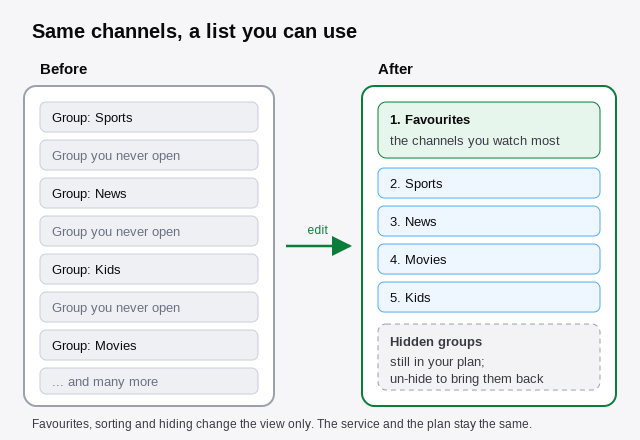
An IPTV editor rewrites the channel list your player shows, not the streams. The channels, their quality and the guide data still come from your subscription; the editor only decides which of them you see, in what order, under which group names and with which guide entry.
That works because a playlist is plain text. Wikipedia's M3U entry, read today, describes an M3U file as a plain text file that lists where media is located. It starts with an #EXTM3U header, and each channel is an #EXTINF line followed by its stream address. IPTV playlists add attributes to that line: group-title puts the channel in a named group such as a genre, tvg-name holds its name, tvg-logo points to its logo, and tvg-id is the identifier used to link the channel to its guide data.
So every edit is one of four things. Hiding removes a channel or a whole group from view. Sorting changes the order of groups or channels. Renaming changes a display name or group title. Matching sets the tvg-id so the channel finds its guide listings. Favourites are a fifth, gentler option: a short list of your own on top of the full one, without deleting anything.
None of this changes what your plan includes. Hiding a group does not remove it from the service, and un-hiding brings it back. Marinios sends a standard Xtream Codes login and an M3U link, and both work with the editing routes below. More player walkthroughs are in our IPTV setup and troubleshooting guides.
Free and paid IPTV editor options compared
There are three places an edit can live, and the right one depends on how much you want to change. Most people only need the first.
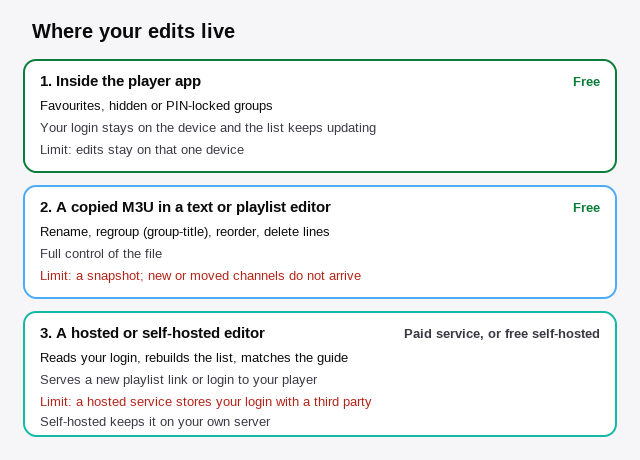
Inside your player app (free). Many players let you build favourites, hide or lock groups and protect them with a PIN, with no extra tool. The GSE Smart IPTV Pro listing on Apple's US App Store, read today, lists a favourite playlist, EPG on favourite channels and parental control. IBO Player's dashboard, as described in our IBO Player setup guide, lets you protect any playlist with a PIN and add an XMLTV guide address. Edits made this way stay on that device and your login keeps updating as normal.
A playlist editor working on the M3U (free or paid). Because M3U is plain text, any text editor can open a copy, including Notepad on Windows. For an IPTV playlist editor for Windows with a channel-list view, the Microsoft Store lists an app titled IPTV Playlist Editor for Windows as a free download; its listing did not describe features when we read it, and we have not tested it. The open-source m3u-editor project on GitHub is self-hosted with Docker under a CC BY-NC-SA 4.0 licence. Its documentation, read today, says it imports M3U or Xtream API sources, lets you choose which groups to include, can number channels by playlist order, takes XMLTV guide files or addresses, and serves the result back as an M3U playlist, an EPG XML file or an Xtream API login.
A hosted editor service (paid). IPTVEditor is a subscription product whose name many people search as "IPTV Editor". Its user guide, which opened behind a sign-in when we checked today and which we read from its indexed text, describes it as a service that adds EPG data and logos, customises streams and reorders channels and categories, imports playlists from an M3U or Xtream API source, and ties guide coverage to the number of EPG countries a subscription includes. We have no affiliation with it and do not list its prices.
| Route | Cost | What you can change | What it needs from you |
|---|---|---|---|
| Player favourites and hidden groups | Free with the player | Favourites, hidden or PIN-locked groups | Nothing extra |
| Text editor on a copied M3U | Free | Everything in the file | Manual work; the copy stops updating |
| Self-hosted m3u-editor | Free software, your own server | Groups, order, guide mapping, new outputs | Docker, your login stored on your server |
| Hosted service such as IPTVEditor | Paid subscription | Order, logos, guide data, stream details | Your login stored by a third party |
How do you edit your playlist step by step?
Work from the lightest change to the heaviest, and stop as soon as the list is usable. These steps apply to any editor; the menu names differ between apps.
Step 1, decide what you want to see. Write down the groups you actually watch. A shorter list loads faster on low-memory TVs; the Smart IPTV developer's FAQ, read for our Smart IPTV activation guide, suggests reducing the playlist size when a TV struggles.
Step 2, build favourites first. Add the channels you watch most to your player's favourites. Nothing is deleted, so this is the safest edit, and it is often all you need.
Step 3, hide the groups you never open. Use the player's hide or lock option for whole groups rather than single channels. Group-level edits survive changes to individual channels better.
Step 4, sort what is left. Move your main groups to the top, then order channels inside them if your player allows it.
Step 5, only then edit the M3U itself. If you need renaming or a custom order your player cannot do, open a copy of the playlist in an editor. Keep each #EXTINF line together with the stream address under it, change group-title to regroup, and save the file as .m3u.
Step 6, load the edited list and check the guide. Add the edited playlist as a new entry in your player, keep the original as a fallback, and open the guide on a few channels before deleting anything.
The trade-off in step 5 is real. A copied M3U file is a snapshot: when the service adds, renames or moves a channel, your copy does not change, so channels can go missing until you edit again. The Xtream Codes login, by contrast, asks the service for the current list each time. That is why we suggest doing as much as possible in the player and keeping the original login in place.
How does EPG matching work in an editor?
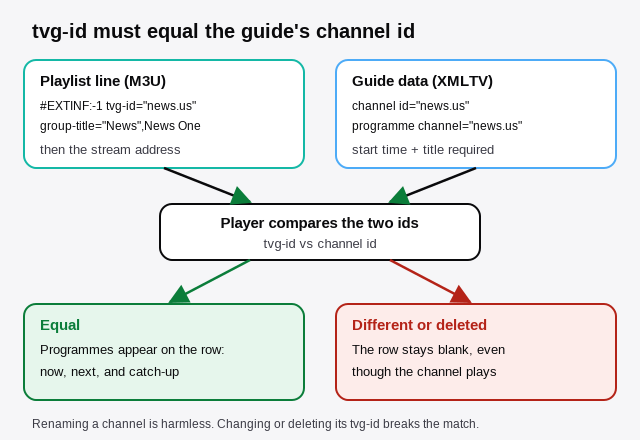
A channel shows guide listings only when its tvg-id in the playlist equals a channel id in the guide data. Wikipedia's M3U entry calls tvg-id the identifier used to link EPG information, and adds that tvg-name can differ from the display name so it matches the display-name in XMLTV.
The XMLTV project's format definition, read today, says each guide channel has one id that must be unique and one or more display names shown to people, and that every programme must carry a start time, the id of its channel and a title. So the player reads a programme, looks at its channel id, and draws it on the row whose tvg-id matches. If no row matches, that programme is never shown.
This is where editing goes wrong most often. Renaming a channel is harmless, but changing or deleting its tvg-id breaks the link, and the row goes blank. Editors that offer EPG matching are setting that tvg-id for you, from the guide's channel list. Two other details matter. Times without a time zone are read as UTC under the XMLTV definition, so a whole guide shifted by the same number of hours is a time zone setting, not a matching fault. And a guide from another source may use different channel ids from your playlist, which is why we suggest using the guide that comes with your own login. Our EPG explainer covers the guide data itself in more detail.
On Marinios, every plan includes EPG and catch-up TV, and the Xtream Codes login loads the guide along with the channels. If a channel stays blank after you have left its tvg-id untouched, the match is on our side.
What should you check before you use an editor?
Treat your playlist link and login like a password, because they open your account. Before you paste either into an online or hosted editor, check who runs it, where it stores the login and how to delete it. A player app or a self-hosted editor keeps the login on your own devices.
Edit only the playlist that comes with your own subscription. Do not paste playlists or guide addresses from forums into an editor: they are not yours to use, they may not match your channels, and we do not publish them here.
If the list or the guide looks wrong after editing, go back to the original login and compare. If the fault is still there, send support the player app, the device and the exact channel names. Marinios support answers on WhatsApp 24/7, and technical issues are worked on within 48 hours of being reported.
If you are still choosing a service, you can test how its list and guide behave in your own player during the free 24-hour trial, with no credit card needed. Marinios IPTV works on the players covered in our device setup pages, and the plans and prices are the same whichever player you use.
Frequently asked questions
Is there a free IPTV editor?
Yes. Your player's own favourites and hidden groups are free, any text editor can open an M3U copy, and m3u-editor is free software you host yourself. Paid services such as IPTVEditor add hosted guide matching and logos.
Can I use an IPTV playlist editor on Windows?
Yes. Notepad opens an M3U copy, the Microsoft Store lists a free app titled IPTV Playlist Editor for Windows, and m3u-editor runs under Docker. Keep each #EXTINF line with its stream address.
Do I need IPTV Editor to use Marinios?
No. Marinios works with a standard Xtream Codes login or M3U link in ordinary player apps. Favourites and hidden groups inside the player cover most tidying.
Why did a channel lose its guide after editing?
Its tvg-id no longer matches a channel id in the guide data. Restore the original tvg-id, or reload the original playlist and compare.
Sources
- M3U, file format and IPTV attribute extensions (en.wikipedia.org), read November 24, 2026
- XMLTV format definition, xmltv.dtd (XMLTV project on GitHub), read November 24, 2026
- IPTVEditor user guide (guide.iptveditor.com): the guide redirected to a sign-in page on November 24, 2026, so its description was read from its search-indexed text that day
- m3u-editor repository README (github.com/m3ue/m3u-editor) and playlist setup documentation (sparkison.github.io/m3u-editor-docs), read November 24, 2026
- GSE SMART IPTV PRO listing (apps.apple.com, US store), read November 24, 2026
- IPTV Playlist Editor for Windows listing (apps.microsoft.com), read November 24, 2026; the listing showed no feature description
- IBO Player dashboard and Smart IPTV FAQ, as read for our IBO Player and Smart IPTV guides on November 19, 2026
- Not tested: no editor named here was installed or used for this guide